How to Add a Border or Frame to a Photo Online
How to Add a Border or Frame to a Photo Online
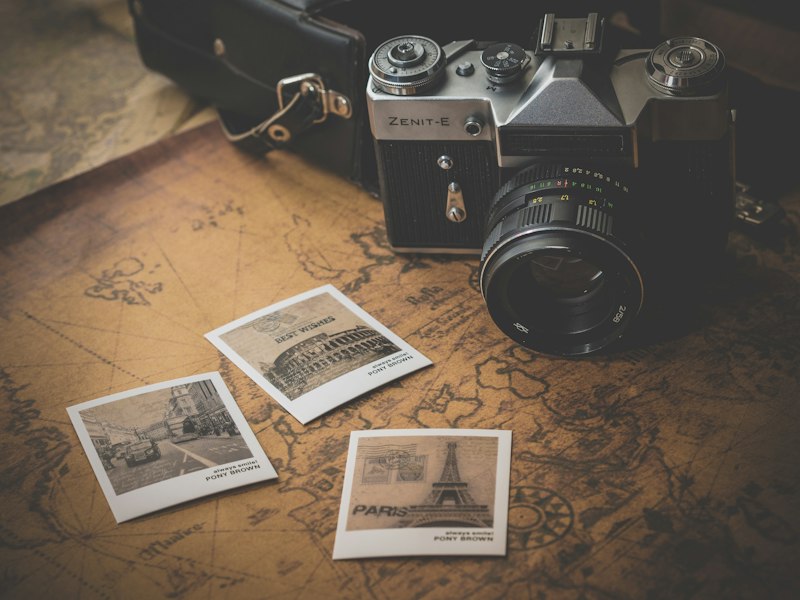
A simple border can be the difference between a photo that looks finished and one that looks cropped straight off a camera roll. Whether it's a clean white edge for a print, or a retro polaroid frame for a social post, adding one takes seconds in a browser.
Why Add a Border to a Photo
- •**Printing and framing.** A white matte-style border is standard for printed photos and looks intentional when the photo is later framed.
- •**Feed consistency.** A consistent border color and width across a set of photos gives a social media grid a more polished, branded look.
- •**Retro aesthetic.** A polaroid-style frame with a wide bottom margin instantly signals a nostalgic, instant-camera feel.
- •**Visual separation.** A border helps a photo stand out from a busy page background, especially on a white or dark website.
Border Styles Explained
Using the Add Border to Photo Tool
The ToolzGo Add Border to Photo tool builds any of these directly in your browser:
- •Upload any JPG, PNG, or WebP photo
- •Pick Solid, Padded, or Polaroid
- •Choose the border color and adjust its width
- •For the Polaroid style, add a short caption in the bottom margin
- •Download the framed photo at full resolution
The border is added around the original image without resizing or recompressing the photo itself, so the photo content stays at full quality.
Choosing a Border Color
White and off-white borders are the safest default — they work with almost any photo and read as clean and neutral. Black borders create a bolder, more dramatic frame, well suited to high-contrast or moody photos. For a polaroid look, a warm off-white shade reinforces the vintage feel better than a stark pure white.
Frequently Asked Questions
Q: Can I add a caption to the polaroid-style border?
A: Yes, the polaroid style includes an editable caption line in the bottom margin.
Q: Can I change the border color?
A: Yes, pick any color for solid and padded borders, including a color picker and a few quick presets.
Q: Does this reduce the photo's resolution?
A: No — the border is added around the original image at its full resolution; the photo itself is not resized or compressed.
Want to style the photo before framing it? Try Photo Filters first, then finish with a border. Need to trim the photo to a specific shape beforehand? Use Image Cropper.
Add a border or polaroid frame, free and instant.
Try Add Border to Photo Free